






ShutterPress includes built-in protection for your high-resolution images. When enabled, it ensures that only paying customers can access original files while scaled versions are shown publicly in galleries.
This helps protect your intellectual property, control access to high-res downloads, and prevent direct linking or unauthorized use.
How Secure Downloads Work #
When image protection is enabled:
- The original full-resolution image is moved to a secure folder with a random name.
- That folder is protected from public access using:
- .htaccess rules (for Apache servers)
- Manual server config (for NGINX)
Visitors will only see the scaled image unless they purchase a digital product that includes the original.
Only Original Images Are Protected #
Only the original image (uploaded by you) is protected. The scaled version is always public and used in galleries.
Protection is only active after a scaled version is generated. If no scaled version exists, the original remains publicly accessible.
Securing your photos #
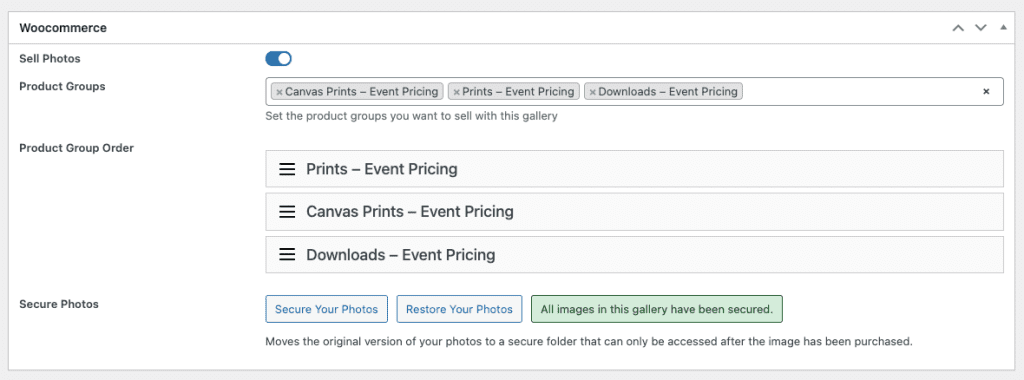
To secure you photos just click on “Secure Your Photos” in the WooCommerce settings section. This will move all the images to a secure folder.
If you would like to move them back for any reason just click on “Restore Your Photos”.
Scaled Image Settings #
To configure the size of the scaled version:
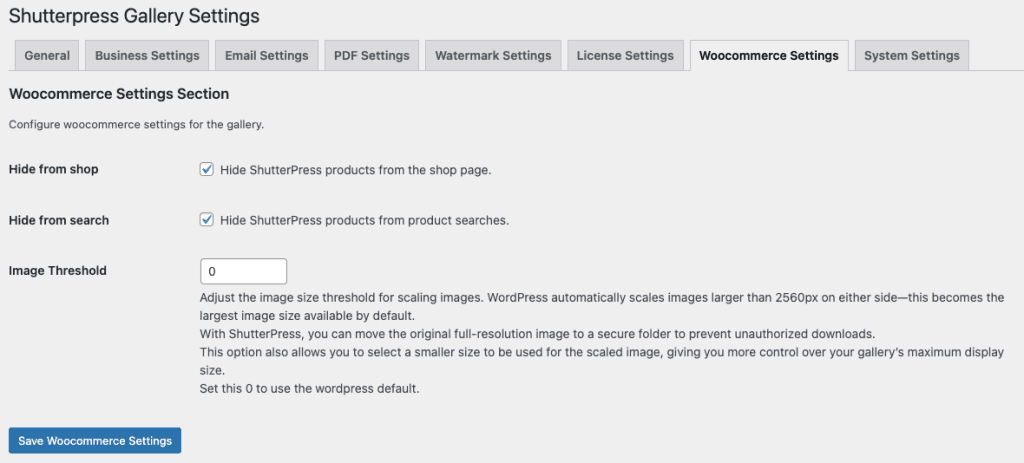
- Go to Shutterpress → Settings → Woocommerce.
- Under “Image Threshold”, choose the maximum width for gallery display (e.g., 2048px).
- This setting only affects:
- Images uploaded via the Gallery Editor
- Images that have a watermark added or removed
Existing images will not be rescaled unless reprocessed.
To reset this to the default, set it to 0.
How the Secure Folder Works #
When downloads are protected:
- The original image is moved to a private folder with a unique random path.
- On Apache servers:
- ShutterPress automatically adds a .htaccess file to block all direct access.
- On NGINX servers:
- You’ll need to manually restrict access to the folder using server config (see below).
ShutterPress serves the download using a secure URL token and WordPress authentication to validate access.
Securing the Folder on NGINX #
If your site runs on NGINX, you must block public access to the secure folder manually.
Add the following rule to your NGINX configuration file:
location ~* /wp-content/uploads/shutterpress/ {
    deny all;
    return 403;
}
Best Practices #
- Always set a scaled image size to ensure original files are protected.
- Use digital download products in ShutterPress to control file access.
- Regularly audit your download settings if you switch hosting or server types.