







Password Protecting a Gallery in ShutterPress #
There are two ways to protect any ShutterPress gallery so that only authorised users can access it:
- With a basic password — anyone visiting the gallery will need to enter the password.
- By assigning specific user accounts — only logged-in users you select will have access.
You can use either of these methods independently.
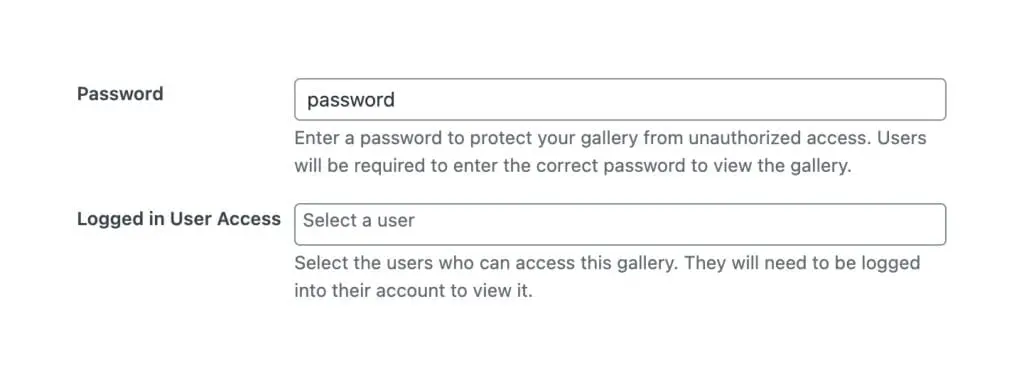
Adding basic password protection #
- In the gallery admin page, scroll down to the Access Control box.
- In the Password field, enter the password you’d like to use.
- Click Update to save. The gallery will now be password protected.
Adding access for logged-in users only #
- In the same Access Control box, select the WordPress users you’d like to give access to.
- Click Update to save. The gallery will now only be visible to those users when logged in.
Notes #
- You can change or remove the password or user access at any time.
- Each gallery can have its own password and user list, making it easy to give different clients access to their private collections.
- Password protection and user-based access can be used at the same time.
- Admin users always have access to all galleries on the frontend. To check how a client will see the gallery, either log out of your admin account or view in a private/incognito browser window.