





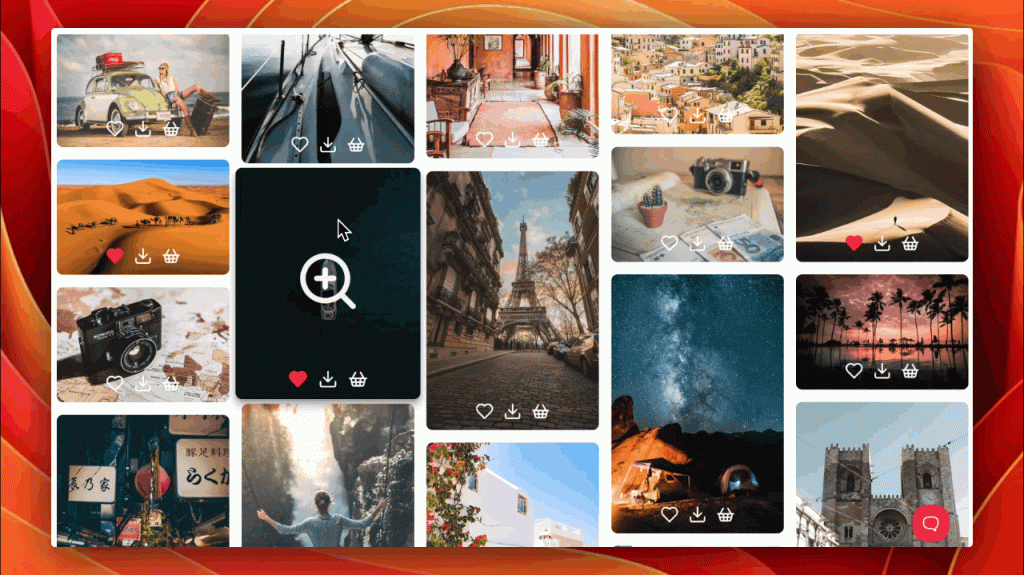
ShutterPress includes a dedicated Elementor widget that lets you easily add and customise galleries directly inside your Elementor layouts.
Adding a Gallery #
- In the Elementor editor, search for ShutterPress Gallery in the widgets panel.
- Drag it onto your page or template.
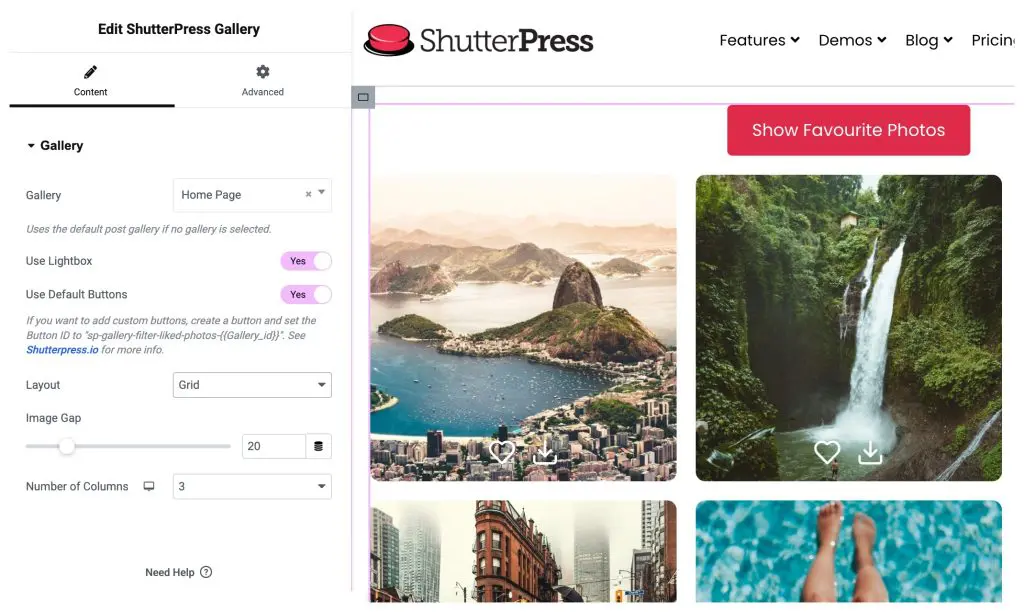
- In the Gallery panel on the left, choose which gallery to display from the Gallery dropdown.
Gallery Settings #
By default, the gallery inherits settings from its saved template. You can override some of these within the Elementor panel:
- Use Lightbox – Enable or disable the lightbox for this widget.
- Use Default Buttons – Toggle to hide built-in buttons if you want to use your own.
- Layout – Choose between Grid, Masonry or Justified layouts.
- Image Gap – Adjust spacing between images with the slider.
- Columns – Set the number of columns for desktop, tablet and mobile (Grid and Masonry layouts).
- Row Height – Adjust row height for the Justified layout.
Use Post Gallery #
The Use Post Gallery option is for creating reusable dynamic templates.
Enable this when designing a Single Gallery template in Elementor Theme Builder. The widget will automatically display the gallery linked to the current post, allowing one template to work for all galleries.
When to use: #
- Building a Single Gallery template in Elementor Theme Builder.
- Any dynamic template where the gallery should come from the current post.
How to set up: #
- Create a Single Gallery template.
- Add the ShutterPress Gallery widget.
- Turn on Use Post Gallery.
- Save and assign the template to your Gallery post type.
All layout, hover, icon and lightbox settings from your chosen template still apply.
Creating a Custom Button #
You can add your own custom buttons to control or filter a ShutterPress gallery, for example to show favourite photos or category filters.
How It Works #
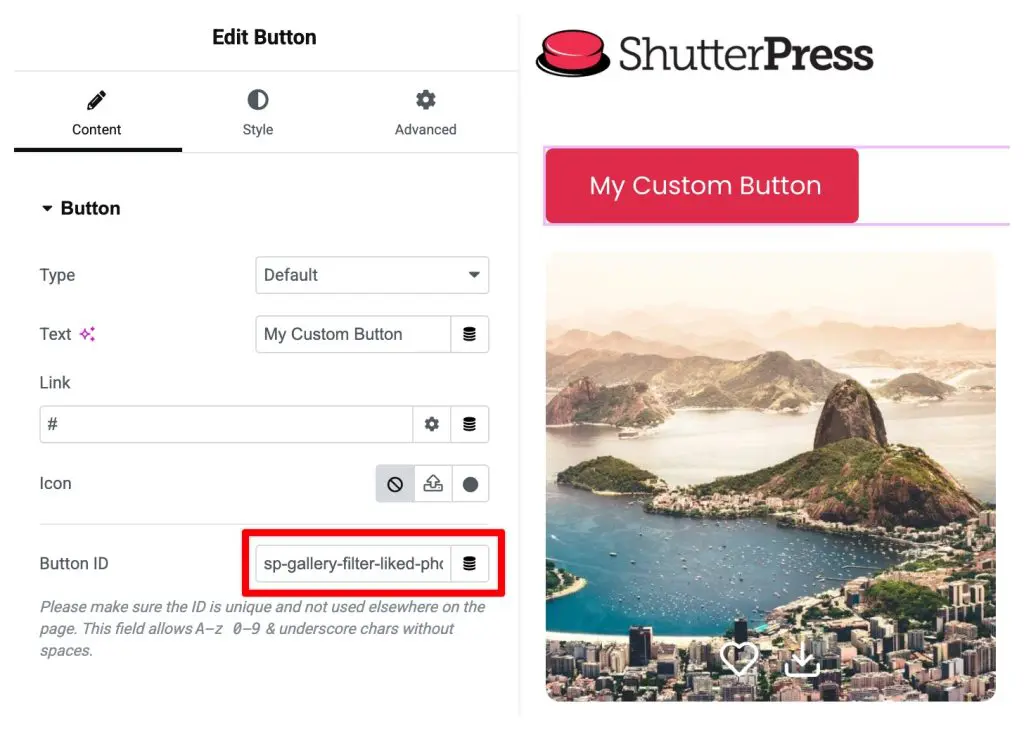
Each gallery listens for buttons with a matching Button ID. When a button with the correct ID is clicked, it triggers the related gallery action.
Creating a Custom Button in Elementor #
- Turn off Use Default Buttons in the gallery widget.
- Add a Button widget above your gallery.
- In the Button ID field set the Button ID to “sp-gallery-filter-liked-photos-{your_gallery_id}”