





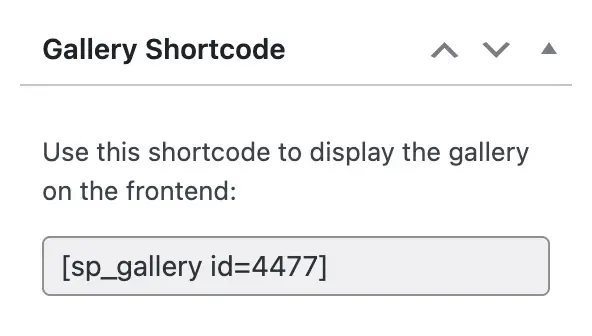
Every gallery created in ShutterPress has its own shortcode, which you can use to display it anywhere on your website.
Copy the shortcode shown in the Gallery Shortcode panel, for example:
Using the Shortcode #
Paste it into any WordPress post, page, or widget area. When the page is viewed, the gallery will appear with the layout, hover effects and lightbox settings you’ve configured.
When you display a gallery using the shortcode, ShutterPress automatically applies your saved default settings from the Gallery Settings page. These defaults ensure a consistent look and feel across all galleries.
However, you can override many of these options directly within the shortcode. This lets you adjust specific galleries without changing the global settings.
By default, ShutterPress loads the following options from your global settings:
- Layout – Uses the site-wide default (Grid, Masonry, or Justified).
- Image Gap – Uses the global column gap (default: 20px).
- Row Height – Applies to Justified layout (default: 300px).
- Lightbox – Enabled or disabled based on your settings.
Overriding Defaults with Shortcode Attributes #
You can override these settings by adding attributes to your shortcode. For example:
[sp_gallery id="4477" layout="justified" gap="10" row_height="250" use_lightbox="false"]This would:
- Display the gallery in Justified layout.
- Set the image gap to 10px.
- Use a 250px justified row height (if applicable).
- Disable the lightbox for this instance.
Available Shortcode Attributes #
| Attribute | Description |
|---|---|
| id | The gallery ID |
| layout | Layout type (grid, masonry, or justified) |
| gap | Space between images in pixels |
| row_height | 300 |
| use_lightbox | Enable or disable lightbox (true or false) |
| show_buttons | Show the default gallery buttons (true or false) |