






ShutterPress includes a dedicated Gutenberg block that lets you easily insert galleries into any post or page without needing shortcodes.
Adding a Gallery #
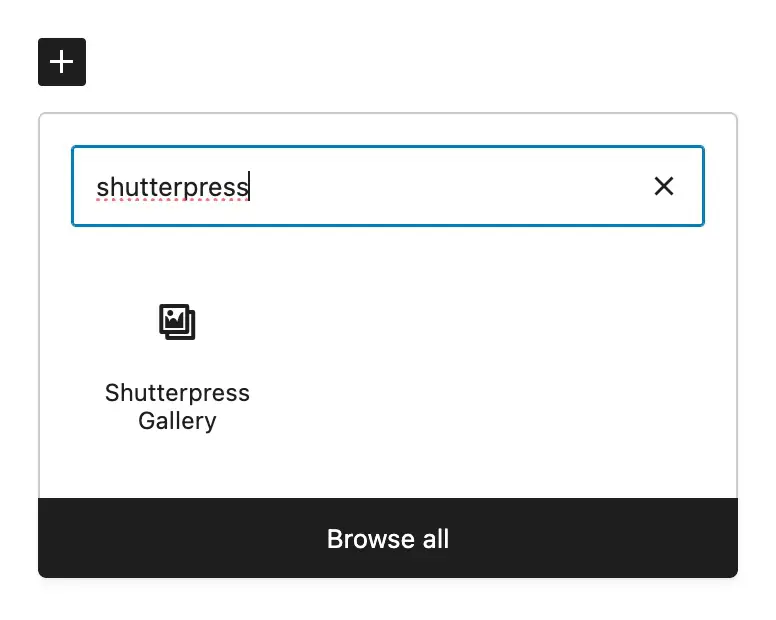
- In the WordPress editor, click the + icon to add a new block.
- Search for ShutterPress Gallery and select it.
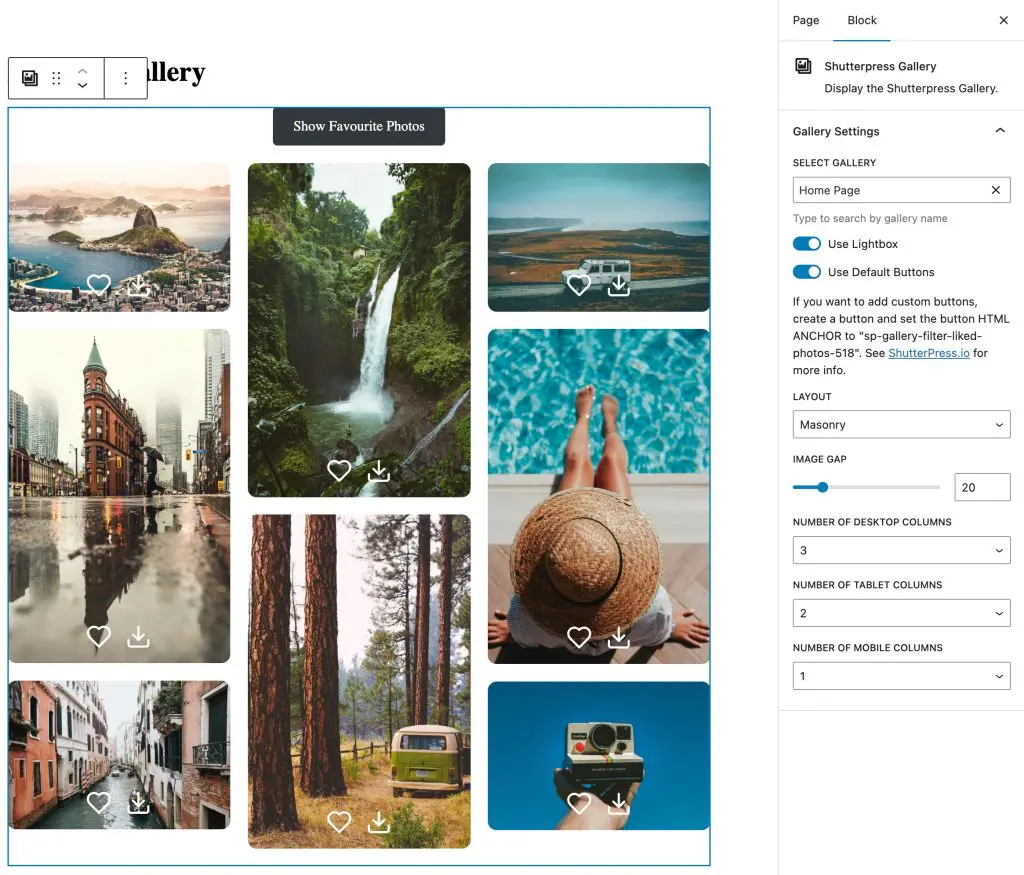
- In the block settings panel on the right, choose the gallery you want to display from the Select Gallery dropdown.
Gallery Settings #
By default the gallery takes the settings that you have chosen in the gallery template. You can override some of them here in the Gallery Settings
- Use Lightbox – Enable or disable the lightbox for this block.
- Use Default Buttons – Hides the default gallery buttons and allows you to use your own button.
- Layout – Choose between Grid, Masonry or Justified.
- Image Gap – Adjust spacing between images using the slider.
- Columns – Set the number of columns separately for desktop, tablet and mobile for the Grid and Masonry Galleries.
- Row Height – Set the row height for the justified gallery.
Use Post Gallery #
Use Post Gallery in “select gallery” is for building reusable template pages. Enable this when you create a single gallery template in the Site Editor. The block or widget will then render the gallery that belongs to the current post, so one template works for every gallery.
When to use #
- Creating a Single Gallery template in the Site Editor
- Any dynamic template where the gallery should come from the current post
How to set up #
- Create a Single Gallery template.
- Insert the ShutterPress Gallery block or widget.
- Turn on Use Post Gallery.
- Save and apply the template to your Gallery post type.
All layout, hover, icon and lightbox settings from your chosen template still apply.
Creating a custom button #
You can add your own custom buttons to control or filter a ShutterPress gallery. This is useful for features like showing liked photos, filtering categories, or triggering specific gallery actions.
How It Works #
Each ShutterPress gallery listens for buttons with specific HTML anchors. When a button with a matching anchor is clicked, the gallery performs the corresponding action (for example, showing favourite photos).
- Hide the default buttons buy turning off “Use Default Buttons
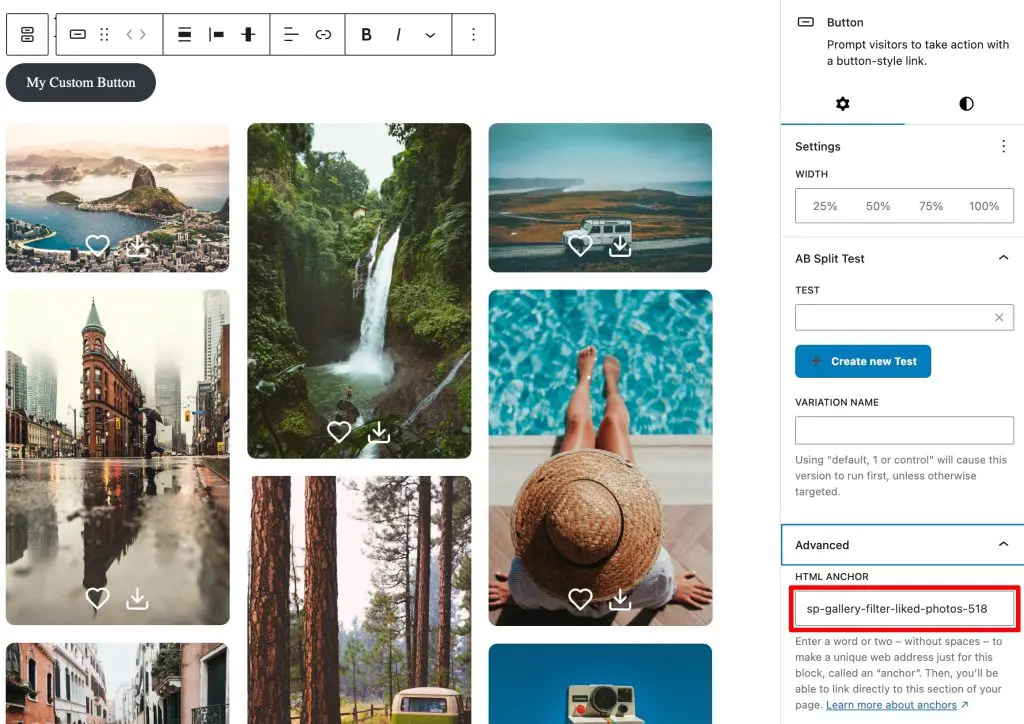
- Add a Button block above your gallery.
- In the block’s sidebar settings, open the Advanced section.
- In the HTML Anchor field, enter the anchor name you want to use.
- Update the button text to Show Favourite Photos.
Notes #
- The number in the anchor (for example, 518) must match your gallery’s ID.
- The default action available is sp-gallery-filter-liked-photos-{ID}.