







Watermarking Images in ShutterPress
ShutterPress allows you to add text or image watermarks to your gallery images for extra protection.
How to add watermarks
- Go to ShutterPress → All Galleries and select the gallery you’d like to edit.
- Scroll down to the Watermark section.
- Choose whether to use the default watermark settings or specific settings for this gallery.
- Default settings can be set under ShutterPress → Settings → Watermark.
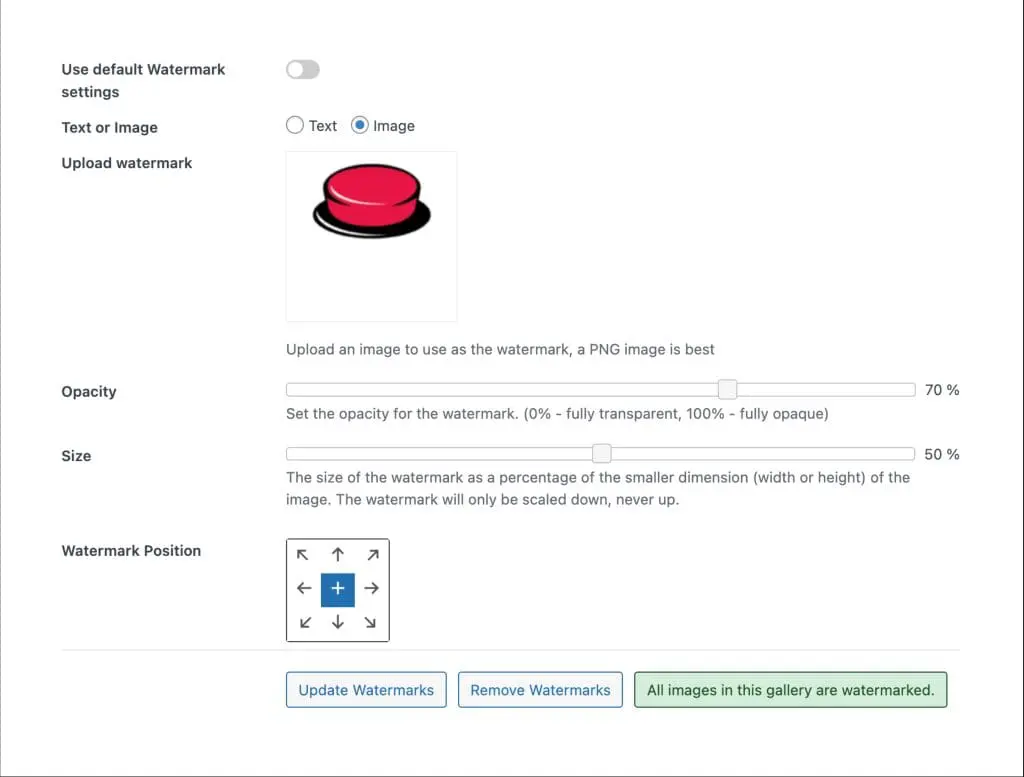
Choose watermark type
- Text – type your watermark text directly.
- Image – upload a custom watermark (a transparent PNG is recommended).
Configure your watermark
- Opacity – adjust the slider to set transparency (0% = invisible, 100% = fully opaque).
- Size – adjust the slider to set the watermark size as a percentage of the smaller image dimension (width or height). The watermark only scales down, never up.
- Position – use the position grid to choose where the watermark will appear (centre, corners, or edges).
Apply the watermark
Click Update Watermarks to apply your chosen settings to all images in the gallery. Watermarks will be applied in batches, and you’ll see a progress indicator showing how many images have been processed.
Image backups
When a watermark is applied, a backup of the original image is stored in a secure folder on your WordPress installation. If you update or remove watermarks later, ShutterPress uses this original file to regenerate the images.
Updating watermarks
You can update watermarks at any time using the same process as adding them. Click Update Watermarks again, and new watermarked images will be created.
Removing watermarks
To remove all watermarks from a gallery, click Remove Watermarks. This is also done in batches. The original image files will be restored to their original location and the backups deleted.
Watermark status
The status box shows how many images in the gallery are watermarked:
- Red – only some images are watermarked.
- Green – all images are watermarked, or none are watermarked.