






All ShutterPress Gallery products are created in WooCommerce, just like any other product. You’ll create one WooCommerce product per item you want to sell, with some specific settings that connect them to your galleries.
Step-by-Step: Create a ShutterPress Product
1. Add a New Product in WooCommerce
Go to Woocommerce Products → Add new product. Select a “Simple product” and add your product name and price as you normally would.
- If you sell different print sizes with different prices, create one product for each size (e.g., “8×10 Print”, “11×14 Print”, etc.).
- If you offer options that don’t change the price (e.g., finish type or paper), you can use attributes instead of variations.
2. Mark It as a ShutterPress Gallery Product
In the ShutterPress Options panel on the product edit screen:
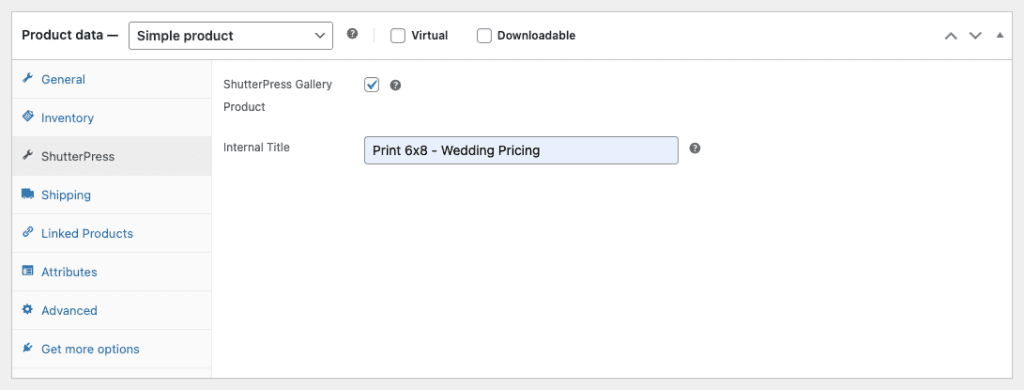
- Check the box labeled “ShutterPress Gallery Product.”
- Enter an internal title — this is only visible in your admin area and used to help organise products in groups.
Digital Product Download Sizes
ShutterPress Gallery Pro lets you choose the image size delivered when a customer purchases a downloadable gallery product. Set this separately for each product.
Choose a download size
- Open the product under Products in WordPress.
- Enable Downloadable in the WooCommerce Product data panel.
- Open ShutterPress Options and enable ShutterPress Gallery Product.
- Choose Download Image Size.
- Click Update, or Publish for a new product.
The Download Image Size field appears when Downloadable is enabled.
Available sizes
| Option | What it delivers |
|---|---|
| Full Size (Original Uploaded File) | The original uploaded image. This is the default. |
| Scaled (After Upload Scaling, max … px) | The image at its size after upload scaling. Actual dimensions depend on the image and the scaling settings applied when it was processed. |
| Registered WordPress sizes | Sizes available on your site, such as Medium, Large, or sizes registered by your theme and plugins. |
Registered sizes use their configured dimensions and cropping rules. A cropped size may change the composition, so check the downloaded result before offering it for sale.
For images with a protected original backup, ShutterPress creates the selected smaller download from that original.
Offer different digital products
To sell different resolutions at different prices, create a separate downloadable product for each option—for example, “Web-size Download” and “Full-resolution Download”.
Choose the appropriate Download Image Size for each product, then add them to a product group and assign that group to your gallery.
Custom download sizes
Under ShutterPress → Settings → WooCommerce → Custom Download Sizes, you can add registered WordPress image size names, one per line.
This makes those names available in the product’s size selector. It does not define new dimensions; the size must already be registered on your site.
Check before selling
Make a test purchase from a gallery and check the downloaded image’s dimensions and crop.
The selected size is recorded with the order item at checkout. Changing the product’s size later does not replace the size already recorded on existing orders.
This setting controls purchased digital downloads. Gallery display sizes and gallery ZIP downloads are configured separately.
Once marked, this product becomes available for use in ShutterPress galleries.
3. Showing Products in the Public Catalog
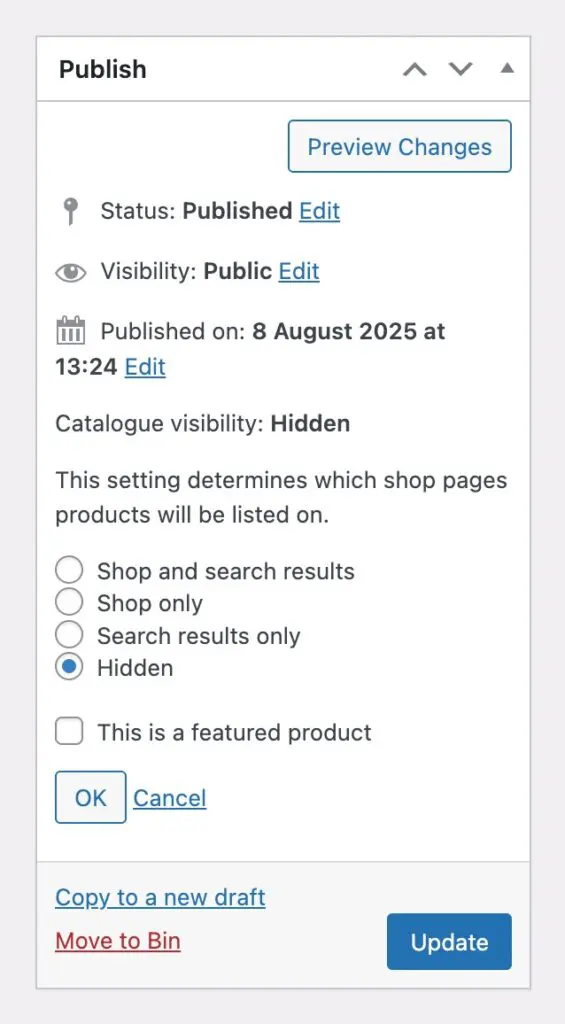
By default, ShutterPress products are hidden from your WooCommerce shop pages and search.
This helps keep your storefront clean and focused.
You can change this behaviour in ShutterPress → Settings → WooCommerce, if you’d prefer products all shutterpress products to appear publicly.
You can also change the settings for an individual product in the Publish settings Box on the product page, click on ‘edit’ next to catalogue visibility and select the option you require.
Please note: As a ShutterPress product has no image assocaited with it unless it is linked to a gellery, it is recomended to keep this set to hidden to prevent these products from being purchased accidentally.
4. Set Attributes
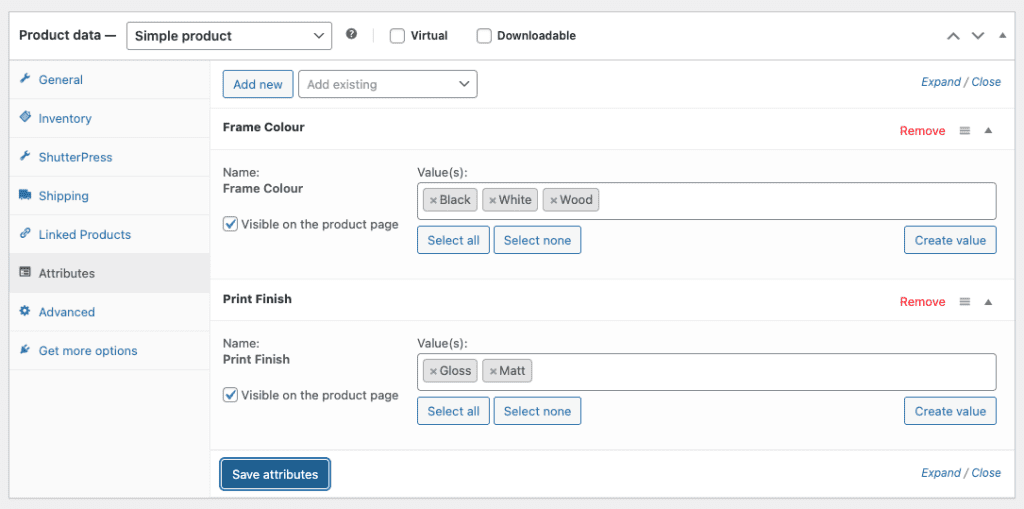
Scroll to the Attributes section and add any options you want customers to select before purchase:
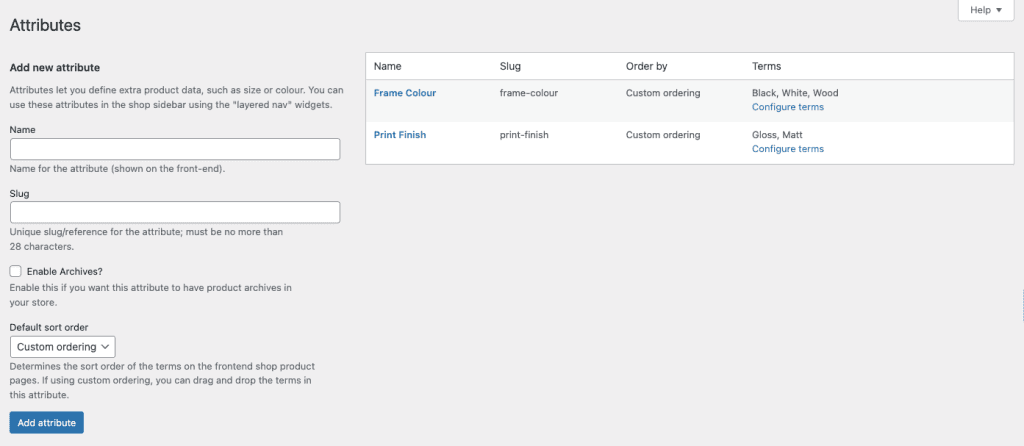
For reusable options across multiple products, go to WooCommerce Products → Attributes and create global attributes first.
Examples: “Print Finish” (Gloss, Matt), “Frame Colour” (Black, White, Wood)
These attributes are required for checkout, users must choose an option if they have been added here.
That’s It!
Your product is now ready to be added to a product group and assigned to any of your galleries.