







All ShutterPress Gallery products are created in WooCommerce, just like any other product. You’ll create one WooCommerce product per item you want to sell, with some specific settings that connect them to your galleries.
Step-by-Step: Create a ShutterPress Product #
1. Add a New Product in WooCommerce #
Go to Woocommerce Products → Add new product. Select a “Simple product” and add your product name and price as you normally would.
- If you sell different print sizes with different prices, create one product for each size (e.g., “8×10 Print”, “11×14 Print”, etc.).
- If you offer options that don’t change the price (e.g., finish type or paper), you can use attributes instead of variations.
2. Mark It as a ShutterPress Gallery Product #
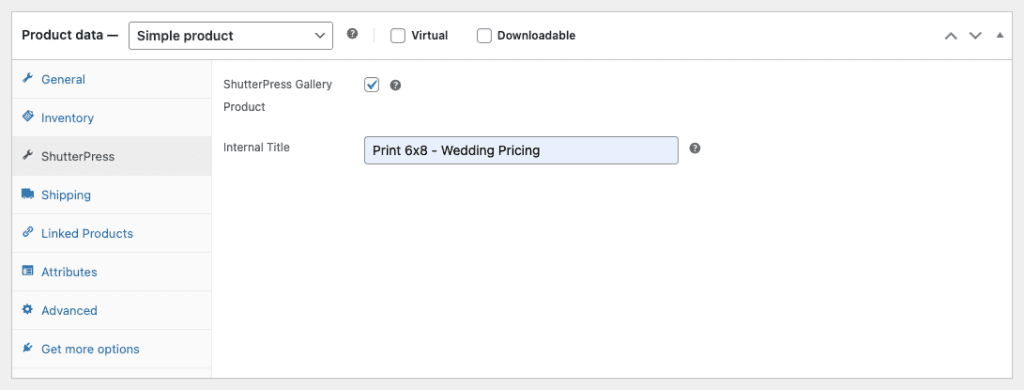
In the ShutterPress Options panel on the product edit screen:
- Check the box labeled “ShutterPress Gallery Product.”
- Enter an internal title — this is only visible in your admin area and used to help organise products in groups.
If you would like the product to be a digital download simply select the “Downloadable” option. By default all downloadable products use the un-watermarked originally uploaded file.
Once marked, this product becomes available for use in ShutterPress galleries.
3. Showing Products in the Public Catalog #
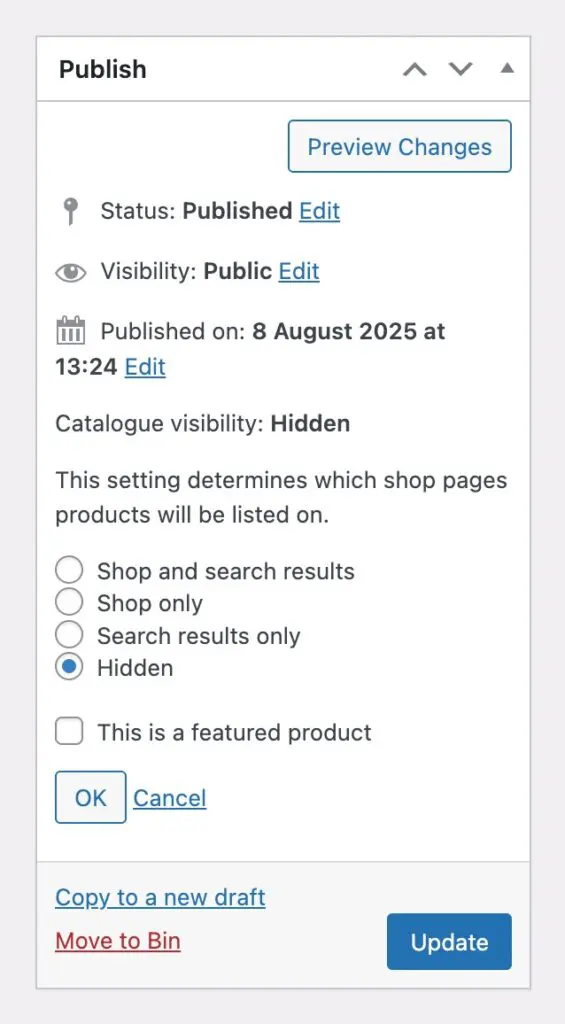
By default, ShutterPress products are hidden from your WooCommerce shop pages and search.
This helps keep your storefront clean and focused.
You can change this behaviour in ShutterPress → Settings → WooCommerce, if you’d prefer products all shutterpress products to appear publicly.
You can also change the settings for an individual product in the Publish settings Box on the product page, click on ‘edit’ next to catalogue visibility and select the option you require.
Please note: As a ShutterPress product has no image assocaited with it unless it is linked to a gellery, it is recomended to keep this set to hidden to prevent these products from being purchased accidentally.
4. Set Attributes #
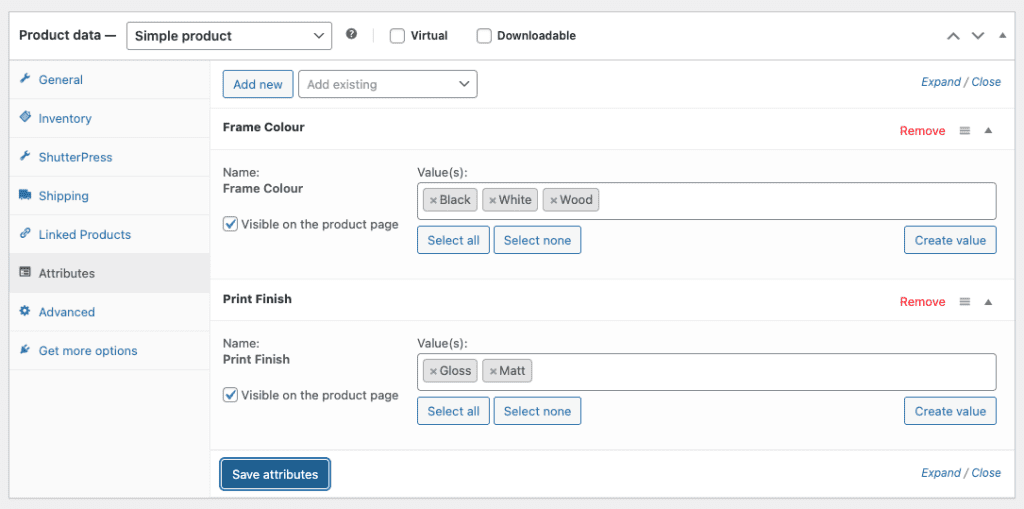
Scroll to the Attributes section and add any options you want customers to select before purchase:
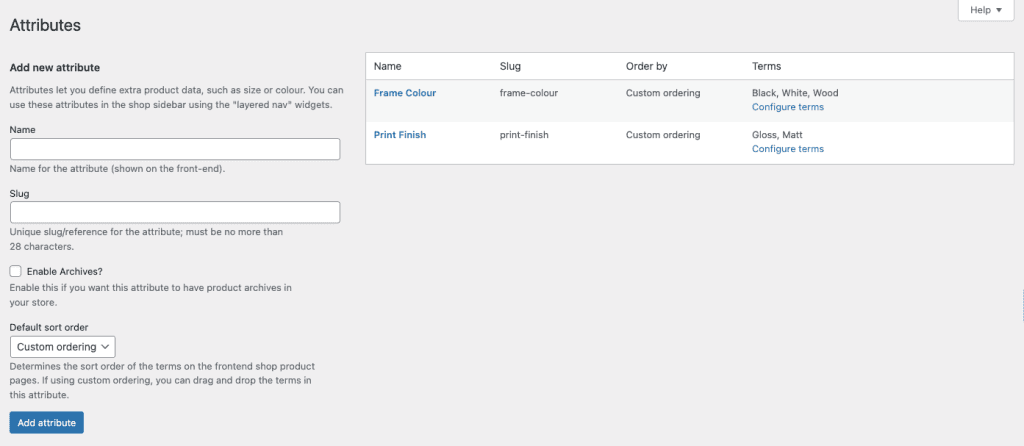
For reusable options across multiple products, go to WooCommerce Products → Attributes and create global attributes first.
Examples: “Print Finish” (Gloss, Matt), “Frame Colour” (Black, White, Wood)
These attributes are required for checkout, users must choose an option if they have been added here.
That’s It! #
Your product is now ready to be added to a product group and assigned to any of your galleries.